
Landscape64 blocks
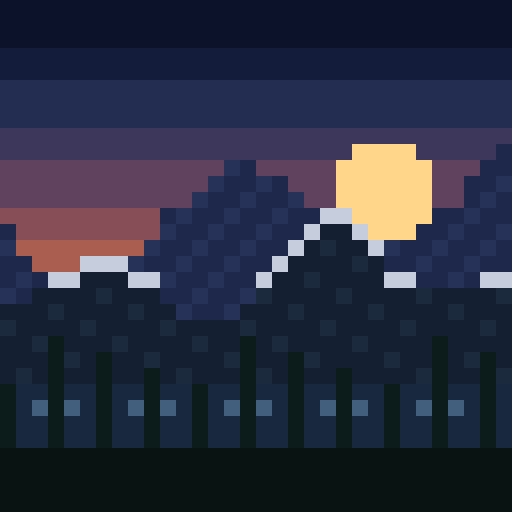
Dawn Ridge
A layered landscape test for gradients, silhouettes and a small warm highlight.
Image to blocks · free browser tool
Turn a photo, logo or drawing into a block-by-block Minecraft build. Compare the original with the converted pixel art, check the material list and download a real .schem — without an account, a model credit or an image upload.
Updated October 26, 2026

Original presets, shown at 32–128 blocks.
The converter
Drop in an image, choose a size and palette, then compare the result. The conversion runs in this browser tab; the image is not uploaded to MinePilot.
Your image stays on your device. MinePilot does not upload, store or publish it.
Transparent areas become air. The preview shows representative block colors, not in-game lighting.
The preview uses average block colors. In-game textures, lighting and resource packs will look different. The download is a block plan, not proof of a specific Minecraft version import.
Featured presets
Six small, original presets made for this page. Choose one to load it into the generator and see how size, palette and dithering change the result. These are editorial examples, not catalog downloads.
A layered landscape test for gradients, silhouettes and a small warm highlight.
A flat logo that shows why dithering should stay off for crisp edges.
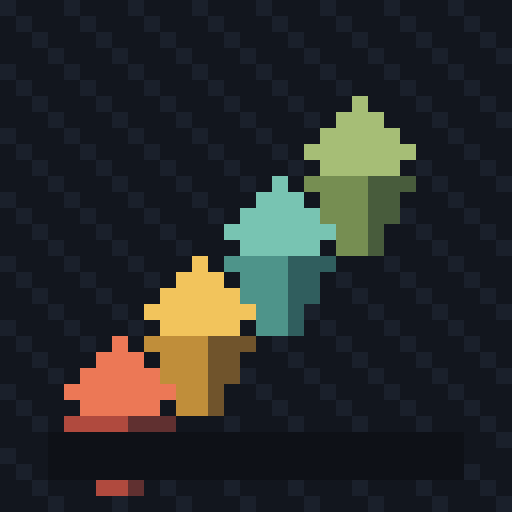
A geometric study with hard color blocks and a strong isometric silhouette.
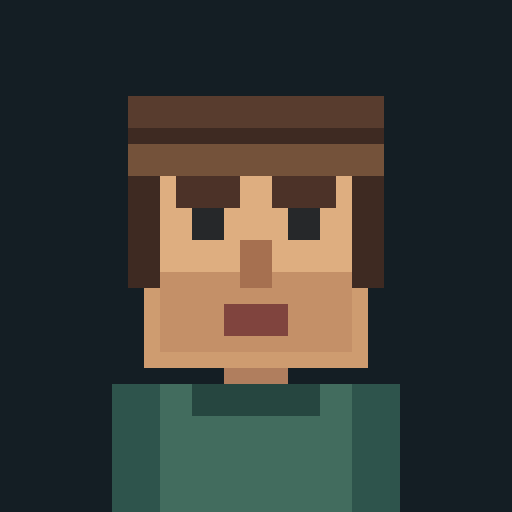
A small portrait for testing whether a 32-block face still reads clearly.
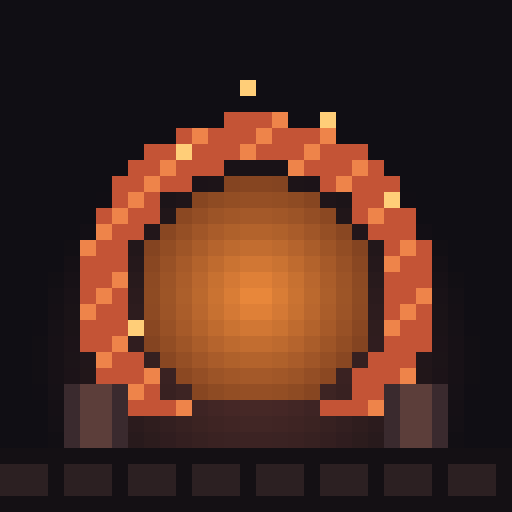
An architectural arch with a dark frame and a warm inner glow.
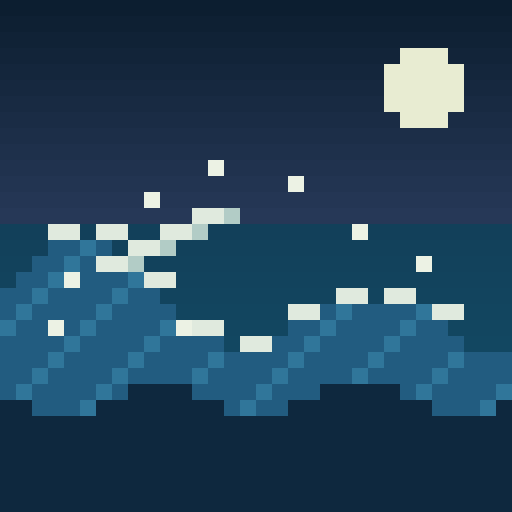
A patterned wave study for testing palette contrast and dense detail.
Public, downloadable pixel-art builds are not published automatically. If this gallery grows, each item will go through the same reviewed R2 publication and human-approval flow as the rest of MinePilot.
From image to blocks
This image to Minecraft pixel art converter is a color-matching and layout tool, not an AI image generator. It samples your image onto the block grid you choose, matches each cell to a palette color, and writes the resulting block plan.
Use a PNG, JPEG or WebP image with a clear subject. Transparent areas become air, and the image is decoded locally in your browser.
Choose a 32, 64 or 128 block long edge. The tool preserves the image aspect ratio and shows the exact block dimensions before you generate.
Choose concrete, wool or terracotta, turn dithering on for photos or off for flat art, and select a wall or floor layout.
Compare the original with the block preview, check the non-air block count and material list, then download a Sponge .schem file.
Plan the build
More blocks preserve more detail, but they also cost more materials and time. Start with the smallest grid that keeps the subject recognizable, then move up only if the preview needs it.
| Long edge | Max blocks | Full stacks | Good for |
|---|---|---|---|
| 32 × 32 | 1,024 | 16 | Icons, signs, simple logos and a first test in survival. |
| 64 × 64 | 4,096 | 64 | Portraits, detailed logos and a medium wall mural. |
| 128 × 128 | 16,384 | 256 | Large walls, landscapes and high-detail centerpieces. |
As a Minecraft image to blocks converter, the tool reports the exact output dimensions, non-air block count and per-block material quantities before you download. A non-square image uses fewer blocks on the short side, and transparent pixels become air, so the real total is usually lower than the table.
Materials and layout
The palette controls which blocks the converter is allowed to use. The layout controls whether the result stands up as a wall or lies flat as a floor.
Concrete gives the strongest flat colors and crisp edges, which suits logos, icons and graphic art. It is a full block, so it does not fall when you place it.
Wool is a good choice for portraits and softer gradients. Remember that wool is flammable; keep it away from lava, fire and open flames in a survival world.
Terracotta has a narrower, warmer color range that suits landscapes, ruins and a more muted architectural palette. The palette includes plain terracotta plus the 16 colored variants.
Leave dithering off for logos, text and flat illustrations. Turn on Floyd–Steinberg for photos and smooth gradients when you want to suggest shades the palette does not contain. Dithering can look noisy at small sizes, so judge it in the final preview.
A wall design stands vertically and is one block thick. A floor design lies horizontally on the ground and is also one block thick. Choose the orientation before you export, because it changes the schematic's dimensions and how the file is placed.
Know the limits
The block colors, the shape of the image on the grid, the output dimensions, the non-air block count and a material list. That is enough to judge readability, palette fit and the gathering job.
In-game texture detail, lighting, shadows, biome tint or a resource pack. The exported file is a one-block-thick block plan, not a framed poster or a finished build with lighting. Test a small section in your world before you gather every material.
Map art uses Minecraft's fixed map-color table and often uses height, water or other map mechanics to change shading. This tool makes a visible wall or floor block piece. Both are useful, but they are not interchangeable.
The download is a schematic file. You still need a compatible tool such as WorldEdit to load and paste it, and you still need to check placement, terrain and version compatibility in your world.
Use the file
The download is a pixel art schematic — a Sponge schematic for Minecraft Java Edition. The short version is:
.schem file from the generator.config/worldedit/schematics.//schem load <name>, then //paste where you want it.//undo if you need to move it.The current exporter targets the Java 26.3 data version. A server or WorldEdit build on a different version may reject newer blocks or need a compatible version; check before you build. Bedrock.mcstructure and native Litematica .litematic are not part of this tool.
Questions
Yes. The generator is free, needs no account and does not use model credits or a paid image API. The conversion and the .schem export happen in your browser.
No. The image is decoded and converted in this browser tab. MinePilot does not upload, store, publish or add your image to a gallery. The analytics events record aggregate tool actions such as start, success or failure, a size band, palette and layout; they do not include your image, file name, pixels, OCR text or original dimensions.
PNG, JPEG and WebP up to 15 MiB per file, 8,192 pixels on a side and 40 megapixels. Larger source images are refused; images that pass are decoded at no more than 1,024 pixels on the long side before the block grid is sampled.
Choose a 32, 64 or 128 block long edge. The other side keeps the image aspect ratio. The engine can write up to 256 blocks per side, but this page deliberately offers the three smaller presets for a practical wall or floor piece.
A real gzip-compressed Sponge v2 .schem file for Minecraft Java Edition. This version does not export Bedrock .mcstructure or Litematica .litematic files. The current exporter targets the Java 26.3 data version; confirm that your WorldEdit or server version accepts it before building.
The tool shows the exact non-air block count after conversion. A fully opaque square is 1,024 blocks at 32 × 32, 4,096 at 64 × 64 and 16,384 at 128 × 128. A non-square image and transparent pixels reduce the total. The material list breaks the count down by block and approximate stacks.
The preview uses the average color of each block texture. In-game lighting, shadows, resource packs, biome tint and the face you look at can change how the same blocks read. Test a small section in your world before gathering every material.
Use wall for a vertical picture on a building or flat surface, and floor for a one-block-high design on the ground, such as a plaza or map-like floor piece. The .schem records the orientation; a wall is not the same as map art, which uses the game's map color table.
The presets are original editorial examples, not reviewed catalog downloads. You can load one into the generator and create your own .schem from it. Any public, downloadable pixel-art build will go through the same R2 publication, review and human-approval flow as the rest of MinePilot.
Yes, in a current mobile browser. The page avoids the 3D viewer and keeps the preview two-dimensional. Very large photos are downscaled before conversion; on a low-memory phone, start with a 32 or 64 block size and a PNG or JPEG rather than a very large image.
Keep building
A pixel-art piece is one kind of Minecraft project. Browse reviewed blueprints, inspect a build before you download it, or follow a guide when you are ready to place a schematic.